What is this post? Link to heading
This post contains a few hints to prove PGP encryption is working on Thunderbird or your PGP mail client of choice. This post is not a guide for configuring PGP or Thunderbird.
Background Link to heading
Email isn’t secure and we shouldn’t trust a thing we receive. We should know that by now. If you don’t, see this article from Jim Salter.
Parties all around the world are trying to peek into our digital lives. I have strong feelings about this, as do the EFF. EFF and 18 Organizations Urge UK Policymakers to Prioritize Addressing the Roots of Online Harm.
So let’s say you’re a journalist, technologist, whistle-blower, or maybe you’re just not in the mood to be scammed. What can you do to send email with a verifiable digital signature and/or encryption? Answer: PGP encryption.
Requirements Link to heading
- A mail client that supports PGP. I use Thunderbird.
- A PGP key in the mail client.
- A Proton Mail account.
Testing Link to heading
Set up a Proton Mail account. A subscription isn’t required.
Click the
Gear icon > All Settings. Head to theEncryption and keystab.Under
External PGP settings, enableSign external messages. I left the defaultPGP/MIME option selected.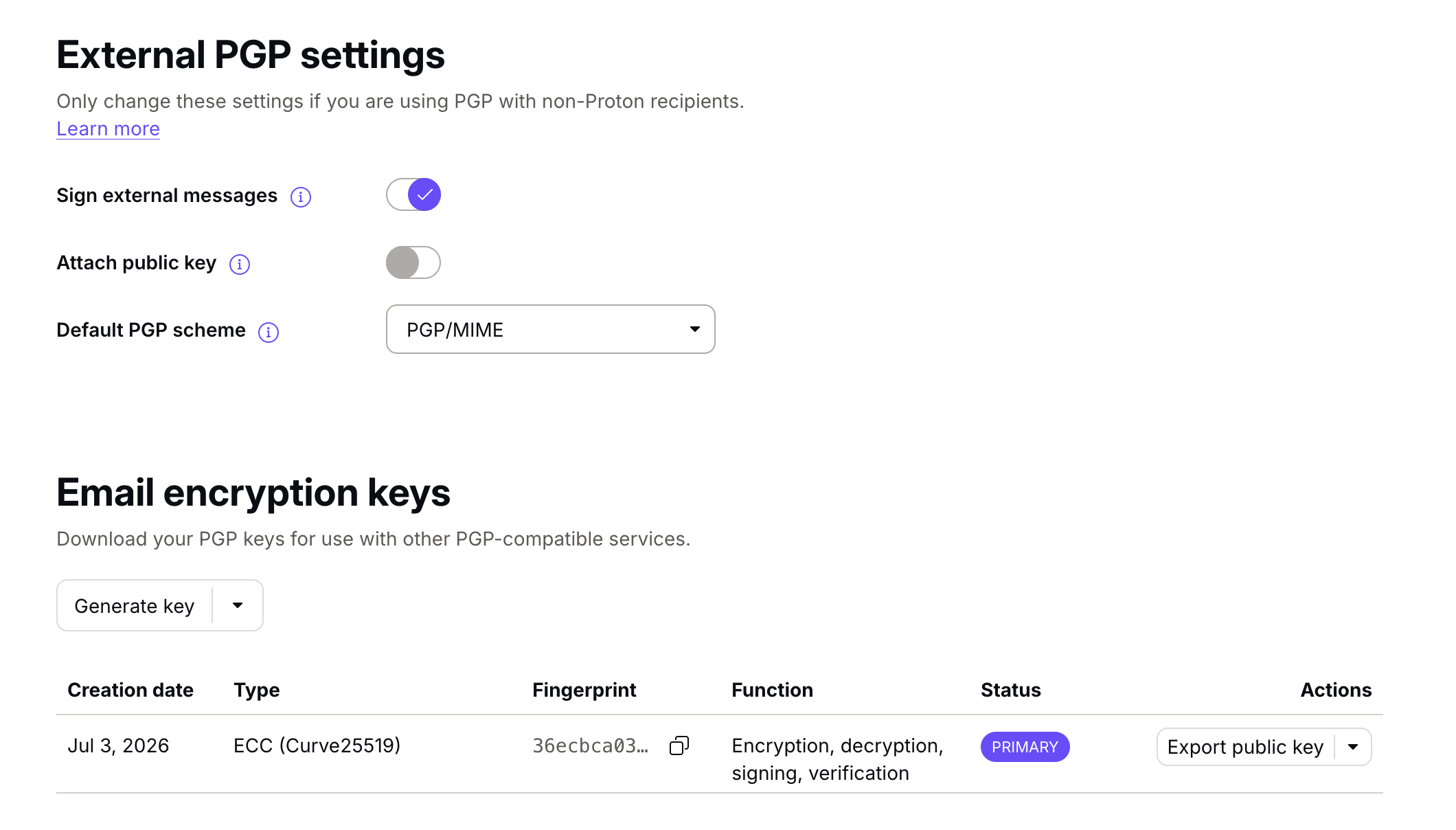
Proton Mail Configuration
On the same page, scroll down and generate a key for your Proton Mail account. Download the public key to your machine.
Return to the Proton Mail inbox, then enter your contacts.
Add a contact for the email you wish to test in Thunderbird / PGP enabled client. In the
advanced PGP settings, enable the option toEncrypt emailsand upload the recipient’s PGP public key (exported from Thunderbird / your client of choice).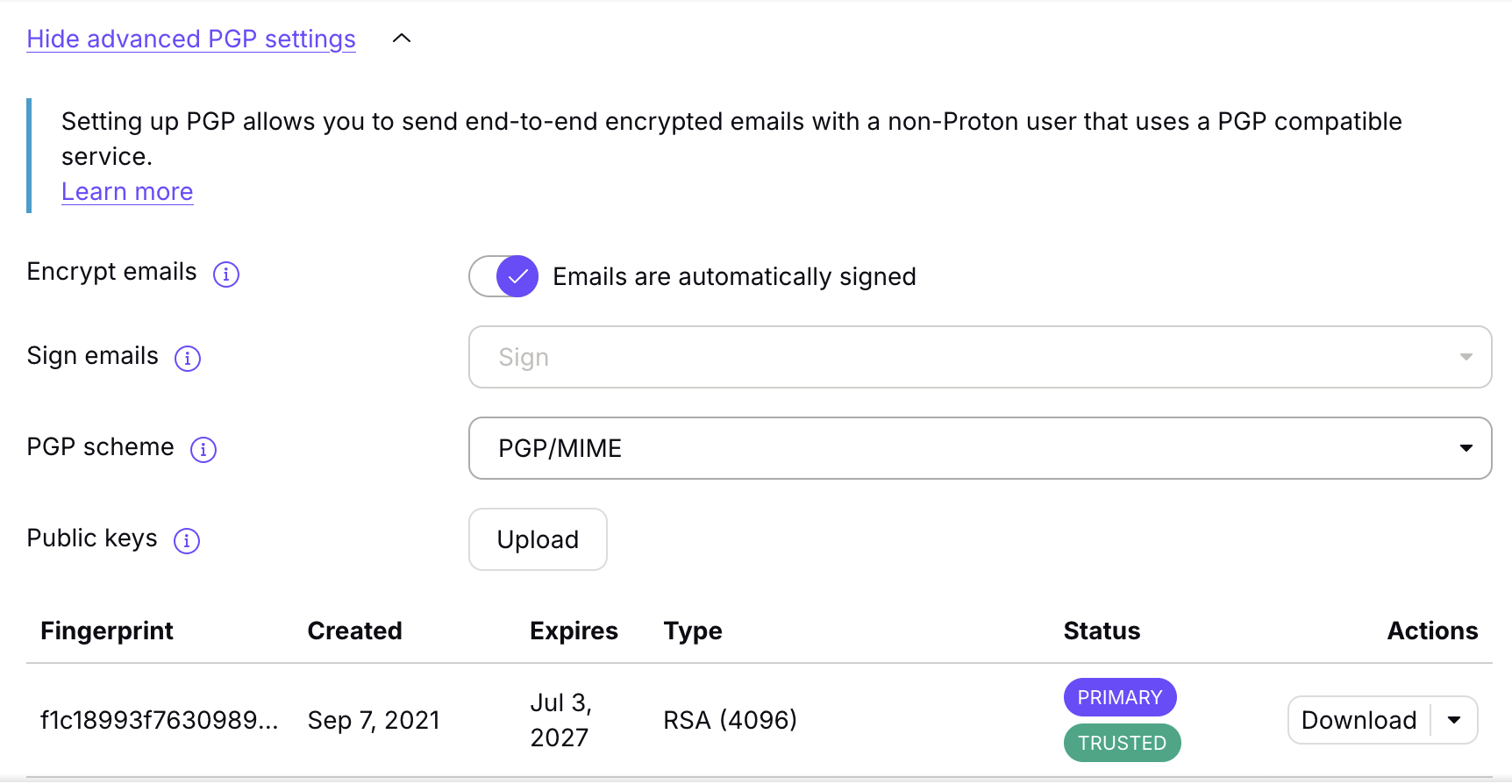
Proton Mail Contact PGP Settings
Send an email to your Thunderbird client.
Nearly there. The email has been encrypted with the PGP key so it can be opened. However, we cannot yet verify the identity of the sender as we haven’t uploaded the sender PGP public key.
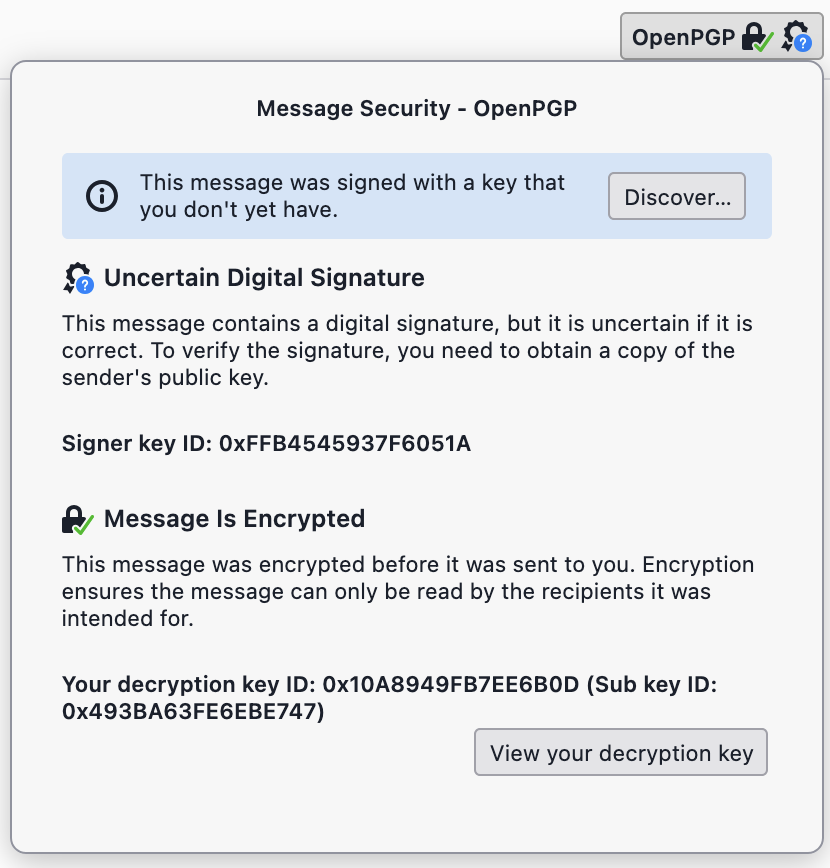
Thunderbird encrypted, not verified
To import the sending email PGP key into Thunderbird, right click the email address in the
Fromline. ClickDiscover OpenPGP Key. If discovery doesn’t find a key, import the public key file from step 4 manually via the OpenPGP Key Manager.You should see a public key appear. Check the fingerprint against the key displayed in step 4.
WarningDo not skip verification of keys. This should be manual, against a key provided outside of the email communication. If keys aren’t verified, the emails remain encrypted but the sender may not be who they claim to be.You can change the trust of the key from
Tools > OpenPGP Key Manager. If the fingerprint matches the key displayed, it can be trusted.Communication between the two addresses is now both verified and encrypted (except the subject line for PGP/MIME so don’t put anything sensitive there). This means your email cannot be viewed in transit, nor by parties with access to the email servers unless they also have your PGP private key. This has been achieved by uploading the Thunderbird key to Proton Mail and vice-versa.
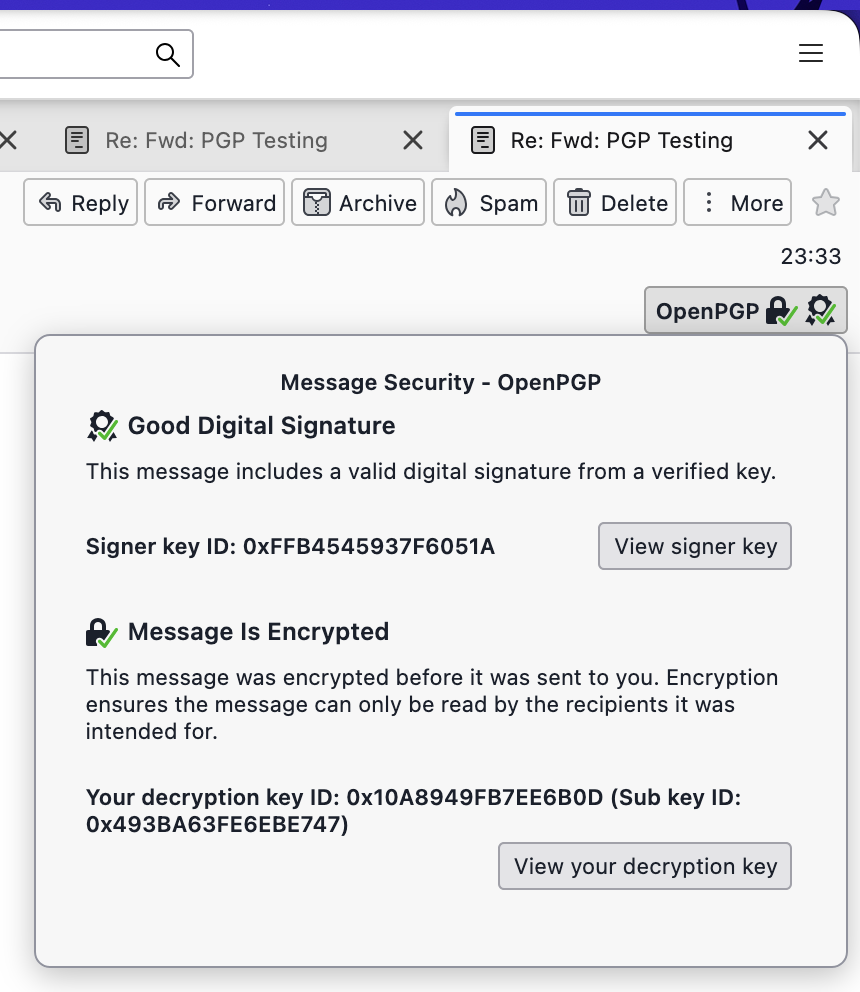
Thunderbird encrypted and verified